
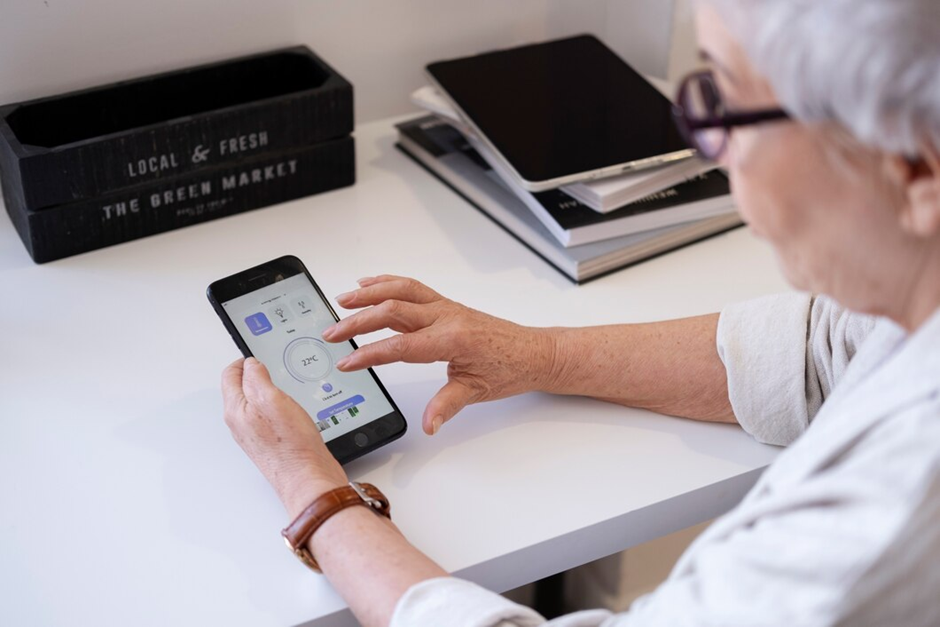
Introduction: Welcome to Your Digital Assistant!
Have you ever wished you had a personal assistant to remind you of doctor’s appointments, birthdays or even to take your medications on time? You already have one right in your pocket!
Your iPhone is more than simply a phone that can make calls and send texts. It can help you stay organized, keep track of key dates, and remember things you might otherwise forget. Your iPhone can do it all, from setting an alarm in the morning to receiving a reminder to water your plants and also reviewing your daily calendar.
Best of all, you don’t have to be a tech expert to use these features! With just a few taps—or even a simple voice command—you can transform your phone into a smart personal assistant. Above all, you can tackle your day-to-day activities with peace of mind. So, in this guide, we will show you how to utilize Siri, the Reminders app, and the Calendar app in a simple, step-by-step manner.
By the end, you’ll be more comfortable using your iPhone to keep track of your everyday routine. So, let’s start!
1. Meet Your Handy Helper: Siri
What is Siri?
Siri is your virtual assistant; imagine it as little assistance within your iPhone that responds to your speech. For instance, you can ask Siri questions, make reminders, and even schedule activities without having to type anything.
How to Activate Siri
Firstly, there are two simple ways to wake up Siri:
- Press and hold the Home button (on earlier iPhones) or the Side button (on newer iPhones).
- Simply say “Hey Siri” (if enabled in the Settings).
What can Siri do?
Secondly, here are a few easy questions you may ask Siri to make your life easier:
- “Hey Siri, remind me to take my medication at 8 AM.”
- “Hey Siri, call my daughter.”
- “Hey Siri, what’s on my calendar today?”
- “Hey Siri, set an alarm for 7 AM.”
Tip: Speak naturally—Siri understands conversational language!
2. Never Forget a Thing: Using the Reminders App
Why Use Reminders?
Imagine having a list that never gets lost and always reminds you when you need it. This is what the Reminders app does!
How to Create a Reminder
- Open the Reminders app on your iPhone.
- Tap the “+” button to add a new reminder.
- Type something you need to remember (for example, “call the doctor”).
- To schedule a certain date and time, tap the calendar icon.
- Tap “Add,” and you’re all set!
Using Siri for Reminders
Also, do you want an even easier way? Simply ask Siri!
- Say, “Hey Siri, remind me to buy milk at 3 PM.”
- Siri will save it and notify you at the appropriate time!
Tip: You can also make lists! Simply say, “Hey Siri, add eggs to my grocery list.”
3. Stay on Top of Your Schedule: The Calendar App
Why Use the Calendar?
Additionally, the Calendar app keeps track of all of your key dates in one location. No more flicking through a paper planner or missing an appointment!
How to Add an Event Manually
- Open the Calendar application.
- Tap the “+” button in the upper-right corner.
- Enter the event name (such as “Doctor’s appointment”).
- Select the day and time.
- Set an alarm (so your phone will remind you in advance).
- Tap “Add”—done!
Using Siri for Calendar Events
Why type if Siri can do it for you? Then, simply say:
- “Hey Siri, schedule a lunch with John on Friday at noon.”
- “Hey Siri, add Mom’s birthday to my calendar on June 10th.”
Tip: You can sync your Calendar with family members so they can see important events, too!
4. Hands-Free Convenience: Using Siri for Everyday Tasks
Your iPhone is more than simply a reminder and calendar; it can also aid you with everyday tasks fully hands-free!
Ask Siri to Help with Daily Activities
In order to ask Siri to help with daily activities, try using Siri for things like:
- Weather updates: “Hey Siri, what’s the weather like tomorrow?”
- Timers and Alarms: “Hey Siri, set a timer for 10 minutes.”
- News and Sports Scores: “Hey Siri, what’s the latest news?”
- Playing Music: “Hey Siri, play some relaxing music.”
Making Calls & Sending Messages
Need to contact someone but don’t want to type? Simply say:
- “Hey Siri, call Sarah.”
- “Hey Siri, send a text to John saying ‘See you soon!'”
By using Siri for these common tasks, you may further simplify your life and experience hands-free convenience!
5. iPhone as a Personal Assistant: Extra Smart Tips & Troubleshooting
Making Things Easier to See & Hear
- To make things easier to see and hear, go to Settings → Accessibility → Display & Text Size and increase text size.
- For louder alerts, go to Settings → Sounds & Haptics and increase the volume.
What If Siri Doesn’t Respond?
- Enable Siri: Settings > Siri & Search → Turn on “Listen for Hey Siri.”
- Check that your phone’s microphone works (try a voice memo).
Using Siri for Calls & Texts
Furthermore, did you know Siri can make calls and texts for you? Try this:
- “Hey Siri, call my son.”
- “Hey Siri, send a message to Lisa saying ‘See you at lunch!'”
So, Do You Want Your iPhone as a Personal Assistant? Give It a Try!
Now that you understand how to use your iPhone as a personal assistant, why not try it? Begin with something simple: ask Siri to remind you to drink water in an hour or to call your friend tomorrow. When you realize how simple it is, you’ll wonder how you ever survived without these useful tools!
Thus, with a few taps or a simple voice command, you can remain on top of your daily routine, never miss an important occasion, and make life easier. Because technology is here to help, not to overwhelm you!
Additionally, if you want to gain an in-depth insight and valuable guide to use Apple devices effectively and easily then we have a recommendation for you. You can read the iPhone user guide for seniors by Jane Smith, namely “A Simple Guide To Using Apple Products For Seniors.”
Also, we would love to hear from you! If you have any queries or want to learn more about a specific feature, please leave a comment below. So, enjoy your digital assistant!